
1. Entegrasyon Kurulumu
Web sitenize Supsis Sohbet Aracını (Widget) eklemek için, aşağıdaki kodu sitenizdeki her sayfanın en üstüne (<head> alanına) eklemeniz gerekmektedir.
- SUPSIS SDK asenkron olarak yüklenir ve sayfa yüklenme hızını etkilemez.
- Yalnızca sohbet aracının görünmesini istediğiniz sayfalara ekleyebilirsiniz.
- Supsis SDK yüklendikten ve uygulama hazır olduktan sonra widget otomatik olarak görüntülenecektir.
Entegrasyon Kodu
<script>
  window.supsis = window.supsis || function () {
    (supsis.q = supsis.q || []).push(arguments);
  };
  supsis.l = +new Date;
</script>

<script
  src="https://SITE_DOMAIN_NAME.visitor.supsis.live/static/js/loader.js"
  type="text/javascript"
  async
  defer>
</script>
SITE_DOMAIN_NAME kısmı, Supsis'e kayıt olurken belirttiğiniz alan adı (domain name) ile değiştirilmelidir.Eğer IdeaSoft altyapısından geldiyseniz, IdeaSoft alan adınız Supsis alan adınız olacaktır. (Örneğin: market71.supsis.live üzerinden giriş yapıyorsanız,
SITE_DOMAIN_NAME=market71 olacaktır).
2. SYNC API (Senkron API) & Metod Karşılaştırması
SYNC API supsis. sözdizimi ile kullanılır. ASYNC API ise supsis() sözdizimi ile kullanılır. API metodları hem senkron hem de asenkron olarak çağrılabilir.
| METOD | SYNC API Kullanımı |
|---|---|
| Sohbet Ekranını Aç | supsis("open") / supsis.open() |
| Sohbet Balonunu Küçült | supsis("minimize") / supsis.minimize() |
| Sohbet Balonunu Gizle | supsis("hide") / supsis.hide() |
| Görüşmeyi Sonlandır | supsis("closechat") / supsis.closeChat() |
| Kullanıcı Verilerini Ayarla | supsis("setUserData",{fullname:'Ali',email:'a@a.com',phone:'5396829048'}) |
| Kullanıcı İletişim Özellikleri | supsis("setContactProperty",{badget:'gold-member'}) |
| Ziyaretçiyi VIP Yap | supsis("setVisitorVip", false) |
supsis("ready", (supsis) => {
    // supsis'i bu kapsam içinde senkron olarak kullanabilirsiniz
    supsis.open();
    supsis.setUserData({ fullname: "Ali", email: "a@a.com", phone: "5396829048" });
});
Veya SDK'yı senkron olarak yükleyebilir ve kodunuzu bu satırdan sonra çalıştırabilirsiniz:
3. ASYNC API (Asenkron API) Metodları
Supsis SDK asenkron olarak yüklendiğinden, API çağrılarınız SDK yüklendikten sonra çalışacaktır.
Yapılandırma Sözdizimi:
"API_FUNCTION_NAME"bir string'tir ve çalıştırılacak fonksiyon adını temsil eder (Eşdeğeri:supsis.open() ===> supsis("open")).payload, çağırdığınız fonksiyon parametre gerektiriyorsa kullanılır.
Ziyaretçi Yönetim Metodları
// Müşteriyi VIP Yap (false = VIP değil, true = VIP)
supsis("setVisitorVip", false);

// Sohbet Balonunu Küçült
supsis("minimize");

// Sohbet Balonunu Gizle
supsis("hide");

// Sohbet Ekranını Aç
supsis("open");

// Görüşmeyi Sonlandır
supsis("closeChat");

// Departman Değiştir
supsis("department", "$DEPARTMENT_TITLE");
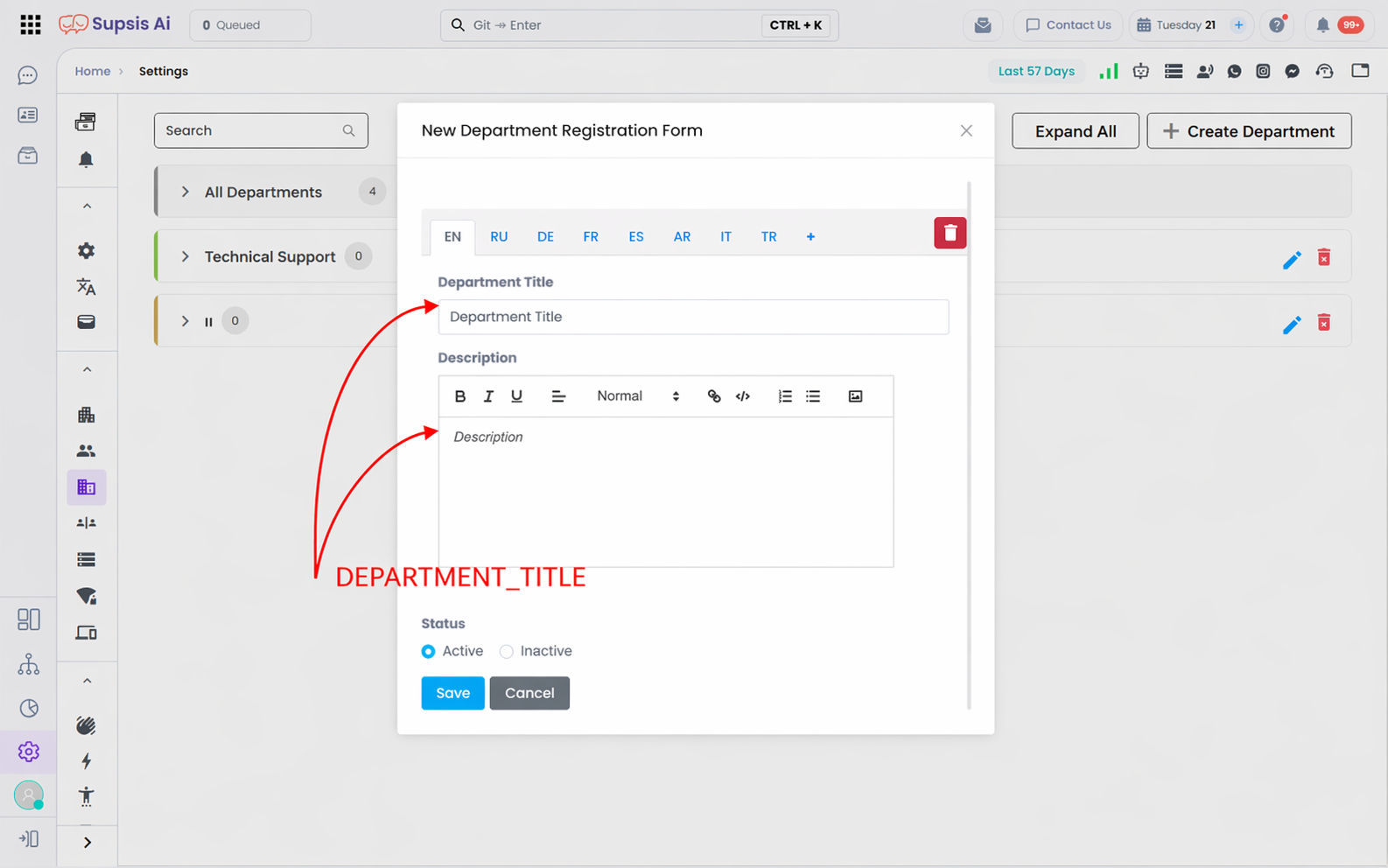
* Departman başlık değerleri tüm dillerde aynı olmalıdır.
4. Ziyaretçi ve Giriş Formu Bilgilerini Güncelleme
Ziyaretçilerinizin kişisel bilgilerini, onlar sohbet balonuna tıklayıp destek istemeden önce Supsis SDK'ya iletirseniz, bilgileri otomatik olarak ayarlanacaktır. Müşterileriniz sisteminizdeki isim, e-posta adresi ve telefon numarasını kullanarak doğrudan sohbete başlayabilirler.
Varsayılan Giriş Formu İçin Bilgi Güncelleme
supsis("setUserData", {
    fullname: "Giriş yapan kullanıcının adı ve soyadı",
    email: "Giriş yapan kullanıcının e-posta adresi",
    phone: "Giriş yapan kullanıcının telefon numarası",
});
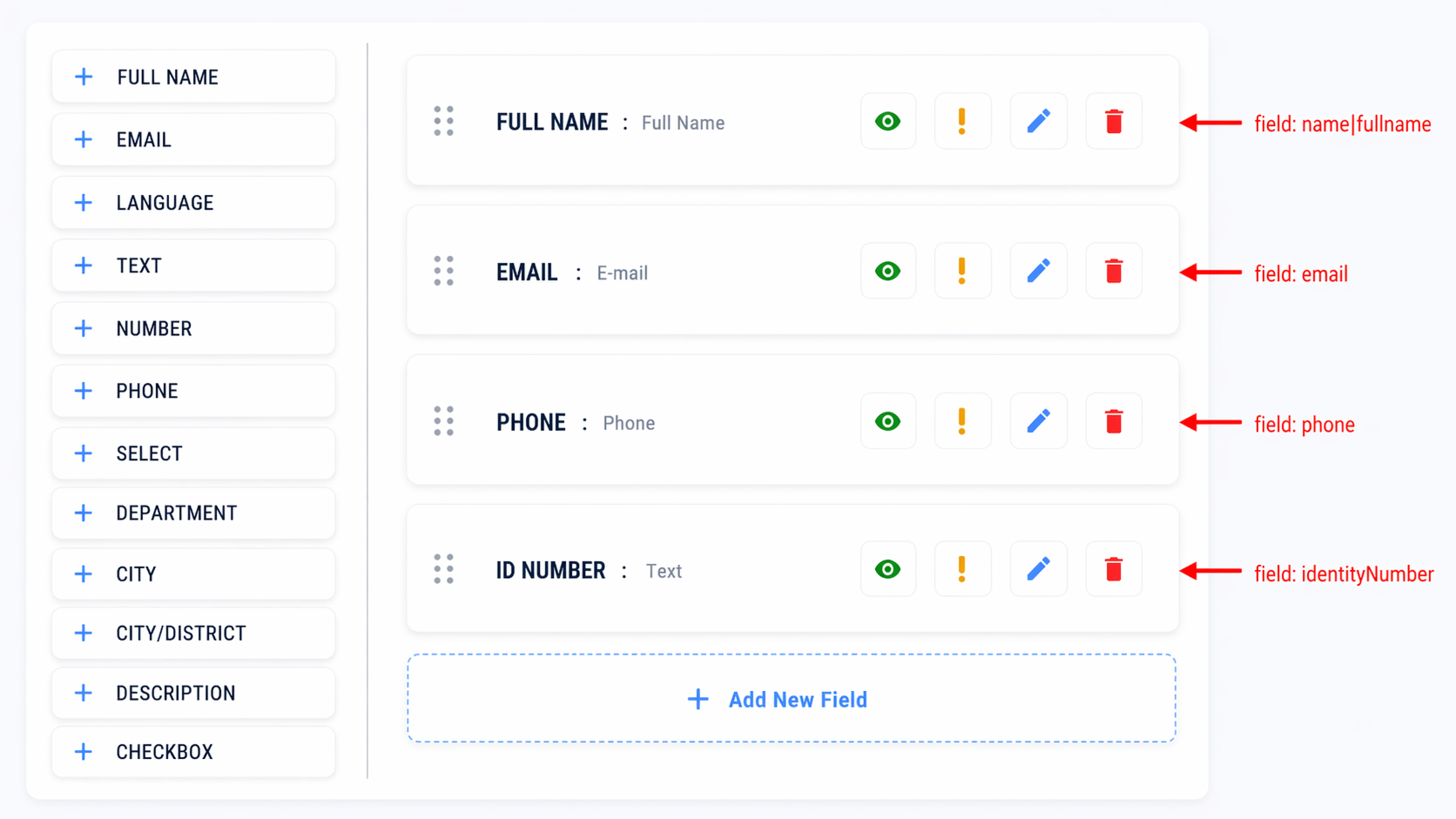
Özel Giriş Formu İçin Bilgi Güncelleme
- Özel giriş formlarında zorunlu alanlar:
fullname,email,phone - Diğer alanları dilediğiniz gibi genişletebilirsiniz. Her alanın bir adı olmalıdır.
Örnek özel giriş formu alanları: (fullname, email, phone, identityNumber)
5. Özel Kullanıcı Verilerini Güncelleme (User Contact Properties)
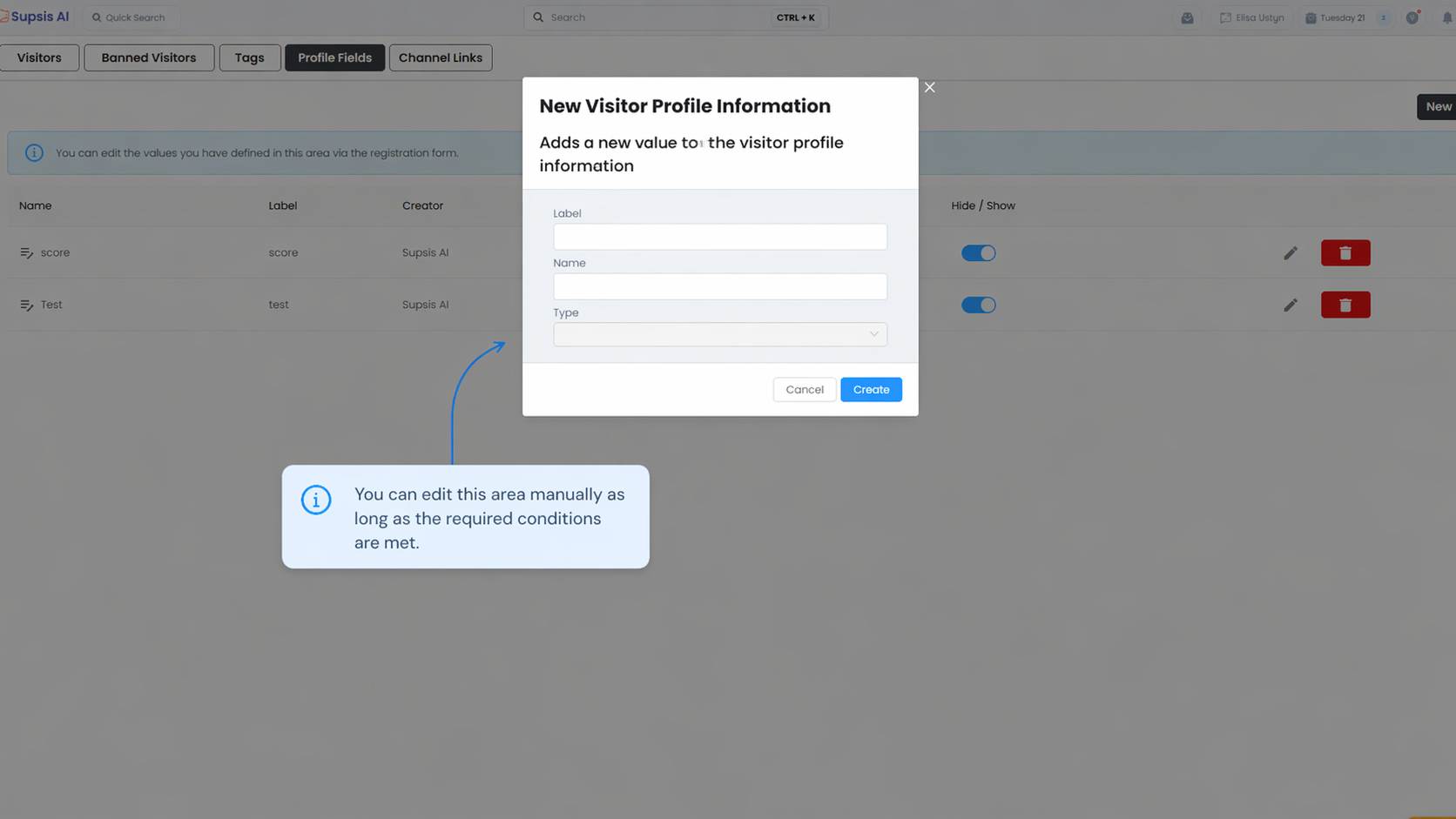
Panel üzerinden oluşturulan özel kullanıcı etiketi veya verilerini SDK üzerinden güncelleyebilirsiniz. Bu özellik müşteri canlı desteğe bağlandığında üyelik seviyesi veya müşteri segmentini görüntülemek için idealdir.
Örnek Senaryo: Üyelik Seviyesi (User Rank) Tanımlama
Müşterinizin üyelik seviyesini iletmek için öncelikle panelde User Rank adında bir etiket oluşturun:
Ardından bu User Rank etiketini müşteriye atamak için SDK içerisinden setContactProperty metodunu çalıştırın:
5.1 Webchat Olay Dinleyicileri (Event Listeners) ve GTM Entegrasyonu
Supsis Web Widget'ı, ziyaretçilerin sohbet balonuna tıklaması veya canlı destek temsilcisine bağlanması gibi kritik etkileşim anlarında JavaScript olayları (events) tetikler. Bu olayları dinleyerek Google Tag Manager (GTM), Google Analytics 4 (GA4) veya Meta Pixel dönüşümlerinizi anlık olarak tetikleyebilirsiniz.
GTM dataLayer Entegrasyon Kodu
// 1. Sohbet Balonuna Tıklanma Olayı (Widget Açılışı)
supsis("ready", (supsis) => {
    if (supsis.i && supsis.i.openButton) {
        supsis.i.openButton.addEventListener("click", () => {
            window.dataLayer = window.dataLayer || [];
            window.dataLayer.push({
                event: "supsis_chat_opened",
                event_category: "Supsis Webchat",
                event_action: "Chat Balonu Açıldı"
            });
        });
    }
});

// 2. Ziyaretçinin Canlı Desteğe / Temsilciye Bağlanma Olayı
window.addEventListener("message", function (e) {
    if (e.data && e.data.command === "visitor-connected") {
        window.dataLayer = window.dataLayer || [];
        window.dataLayer.push({
            event: "supsis_visitor_connected",
            event_category: "Supsis Webchat",
            event_action: "Canlı Desteğe Bağlandı",
            chat_id: e.data.id || null
        });
    }
});
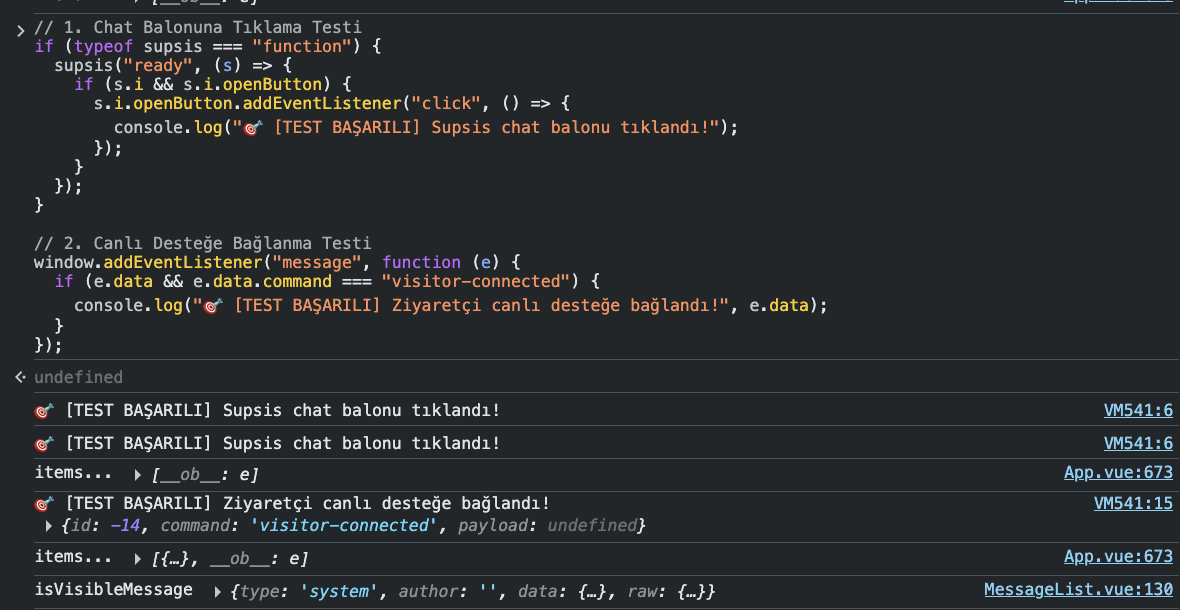
Canlı Konsol Doğrulaması
Web sitenizin tarayıcı konsolunda (F12) kodun başarıyla dinlendiğini ve tetiklendiğini aşağıdaki gibi doğrulayabilirsiniz:
6. Automation SDK ile Programatik Toplu WhatsApp Gönderimi & Kuyruk Yönetimi
Supsis Otomasyon Kod Blokları (Automation SDK / JS Scripting) içerisinde supsis.whatsapp ve supsis.queue metodları ile toplu WhatsApp şablon gönderimlerini güvenli arka plan kuyruk yapısında çalıştırabilirsiniz.
Önemli SDK Metodları ve Kullanım Mantığı
- Kanal ve Şablon Doğrulama:
supsis.channel.get(channelId)vesupsis.whatsapp.getTemplate({ channelId, templateId })ile kanal aktifliği ve şablon varlığı denetlenir. - Hedef Kitle Segmentasyonu:
supsis.contact.searchV2({ filters, cursor })ile belirli platform, etiket ve telefon numarasına sahip kişiler süzülür. - Arka Plan Kuyruğu (Fire-and-Forget):
supsis.queue.add(fn, "queue_name")fonksiyonu ilesupsis.whatsapp.sendTemplateMessageistekleri sıralı işleme alınarak API sınırları korunur. - Kuyruk Durumu İnceleme:
supsis.queue.status("queue_name")ile işlenen, bekleyen ve kalan kuyruk istatistikleri raporlanır.
7. Automation SDK ile Evrensel Kişi Arama, Oluşturma & Çok Kanallı Mesajlaşma
Automation SDK (JS Kod Blokları) içerisinde WhatsApp, Instagram, Telegram ve Messenger alıcı kimliklerine göre kişi sorgulama, eksik kişileri otomatik oluşturma ve doğrudan contact.sendTextMessage, contact.sendImageMessage ve contact.sendAssetMessage ile mesaj iletimi gerçekleştirilebilir.
Önemli Metodlar
- Çok Kanallı Kişi Arama:
supsis.contact.get(contactId),supsis.contact.searchV2({ filters })(WhatsApp/Telefon) veyasupsis.contact.search({ groups })(InstagraminstagramUserId, TelegramtelegramUserId, MessengermessengerUserId). - Otomatik Kişi Oluşturma: Bulunamayan alıcılar için
supsis.contact.create({ platform, fullname, phone, channelIds })ile yeni kart açılır. - Mesaj İletimi:
contact.sendTextMessage({ from, text }),contact.sendImageMessage({ from, url, caption })vecontact.sendAssetMessage({ from, url, assetType, filename }).
8. Supsis Core & Otomasyon SDK API Referansı (Tüm Metodlar)
Supsis Otomasyon Kod Blokları, İş Akışları ve Sunucu Tarafı SDK ortamında kullanabileceğiniz tüm kategorize edilmiş API metodları aşağıda listelenmiştir.
👥 Kullanıcı Yönetimi (Users)
| Metod İmzası | Açıklama |
|---|---|
supsis.users.get(id) | ID ile kullanıcıyı getirir. |
supsis.users.list() | Siteye ait tüm kullanıcıları listeler. |
supsis.users.showWidget(options) | Belirli temsilci panelinde widget gösterir. |
supsis.users.playSound(options) | Belirli temsilci panelinde ses çalar. |
supsis.users.playSpeechToText(options) | Metni sese çevirip temsilci panelinde oynatır. |
🎫 Destek Kayıtları (Ticket)
| Metod İmzası | Açıklama |
|---|---|
supsis.ticket.get(id) | ID ile ticket kaydını getirir. |
supsis.ticket.create({contactId, tag, subject, email, phone, message}) | Yeni ticket oluşturur. |
supsis.ticket.update(ticketId, fields) | Ticket alanlarını günceller. |
📎 Medya ve Dosya Yönetimi (Asset)
| Metod İmzası | Açıklama |
|---|---|
supsis.asset.create(urlOrBase64, fieldType, options) | URL veya base64 girdisinden asset oluşturur. |
supsis.asset.get(id) | ID ile asset kaydını getirir. |
✅ Görev Yönetimi (Task)
| Metod İmzası | Açıklama |
|---|---|
supsis.task.get(id) | ID ile görev kaydını getirir. |
supsis.task.create(data) | Yeni görev oluşturur. |
supsis.task.update(taskId, fields) | Görev alanlarını günceller. |
supsis.task.move(taskId, pipelineName) | Görevi pipeline içinde yeni kolona taşır. |
supsis.task.search(workflowId, filters, cursor) | Workflow içindeki görevleri filtreleyerek arar. |
💬 Konuşma ve Sohbet Yönetimi (Chat)
| Metod İmzası | Açıklama |
|---|---|
supsis.chat.get(chatId) | ID ile konuşmayı getirir. |
supsis.chat.getMessages(chatId) | Konuşmanın mesajlarını getirir. |
supsis.chat.close(chatId) | Aktif konuşmayı kapatır. |
supsis.chat.open(options) | Kişi için yeni chat açar, varsa mevcut aktif chat'i alreadyExists ile döner. |
supsis.chat.isActiveChatExistsByContactId(contactId) | Kişinin aktif/new/chatbot/lost durumunda chat'i olup olmadığını kontrol eder. |
supsis.chat.transferToQueue(chatId) | Konuşmayı kuyruğa devreder. |
supsis.chat.transferToChatbot(chatId, options) | Konuşmayı chatbot akışına devreder. |
supsis.chat.transferToDepartment(chatId, departmentId) | Konuşmayı departmana yönlendirir. |
supsis.chat.transferToDepartmentAndAgent(chatId, departmentId, agentId) | Konuşmayı departman ve ajana birlikte yönlendirir. |
✉️ Mesaj Nesne Metodları (Message)
| Metod İmzası | Açıklama |
|---|---|
supsis.message.get(messageId) | ID ile mesajı getirir. |
supsis.message.findByExternalProviderId(externalProviderId) | External provider ID ile mesaj bulur. |
supsis.message.findByGupshupMessageId(gupshupMessageId) | Gupshup message ID ile mesaj bulur. |
supsis.message.findByMetaMessageId(metaMessageId) | Meta message ID ile mesaj bulur. |
supsis.message.findByUniqMessageId(uniqMessageId) | Uniq message ID ile mesaj bulur. |
supsis.message.toLite(message) | Mesajı lite formata dönüştürür. |
supsis.message.toLLM(messageOrMessages) | Mesaj(lar)ı LLM tüketimine uygun forma dönüştürür. |
📋 Form İşlemleri (Form)
| Metod İmzası | Açıklama |
|---|---|
supsis.form.getSubmission(submissionId) | Form submission verisini slug bazlı sade formatta döner. |
👤 Kişi Yönetimi (Contact)
| Metod İmzası | Açıklama |
|---|---|
supsis.contact.get(id) | ID ile kişi kaydını getirir. |
supsis.contact.create({platform, fullname, email, phone, channelIds, contactProperties}) | Yeni kişi oluşturur. |
supsis.contact.update(contactId, fields, isListenEvent) | Kişi alanlarını günceller. |
supsis.contact.addTag(contactId, tagId) | Kişiye tag ekler. |
supsis.contact.removeTag(contactId, tagId) | Kişiden tag kaldırır. |
supsis.contact.updateContactProperty(contactId, contactPropertyName, value) | Kişinin contact property alanını günceller. |
supsis.contact.changeOwnerAuto(contactId, options) | Kişinin sahipliğini otomatik kurallara göre değiştirir. |
supsis.contact.changeOwner(contactId, ownerId) | Kişinin sahipliğini belirli kullanıcıya atar. |
supsis.contact.addDepartment(contactId, departmentId, isListenEvent) | Kişinin relatedDepartments listesine departman ekler. |
supsis.contact.updatePreferredLanguage(contactId, lang, isListenEvent) | Kişinin preferredLang alanını günceller. |
supsis.contact.search(filterGroups, cursor, projectionFields, withCount) | Contact kayıtlarında filterGroups ile arama yapar. |
supsis.contact.getMessages(contactId, options) | Kişiye ait mesajları getirir. |
supsis.contact.getChats(contactId, options) | Kişiye ait konuşmaları getirir. |
📲 SMS Gönderimi ve Durum Sorgulama
| Metod İmzası | Açıklama |
|---|---|
supsis.sms.send({channelId, senderId, number, message}) | SMS gönderir. Başarılı veya hatalı sonucu provider bilgiyle döner. |
supsis.sms.getStatus(params) | SMS durumunu provider'a göre sorgular. |
📱 WhatsApp İşlemleri (WhatsApp)
| Metod İmzası | Açıklama |
|---|---|
supsis.whatsapp.sendTemplateMessage({channelId, template, phoneNumber, params, asset}) | WhatsApp template mesajı gönderir (Meta veya Gupshup kanalına göre). |
supsis.whatsapp.getTemplate({channelId, templateId}) | WhatsApp template bilgisini getirir. |
supsis.whatsapp.qr.send(options) | WhatsApp QR kanalı üzerinden mesaj/asset gönderir. |
supsis.whatsapp.qr.sendLocation(options) | WhatsApp QR kanalı üzerinden konum gönderir. |
📧 E-posta İşlemleri (Email)
| Metod İmzası | Açıklama |
|---|---|
supsis.email.send({from, to, subject, content, senderName, templateId, type}) | E-posta gönderir. Başarıda messageId/emailId, hatada success:false döner. |
supsis.email.getByMailId(mailId) | Mail ID ile mail kaydını getirir. |
📡 Kanal Yönetimi (Channel)
| Metod İmzası | Açıklama |
|---|---|
supsis.channel.list() | Kanalları listeler. |
supsis.channel.get(channelId) | ID ile kanal getirir. |
supsis.channel.getByType(type) | Tipe göre kanalları getirir. |
🔔 Aktivite ve Bildirimler (Activity)
| Metod İmzası | Açıklama |
|---|---|
supsis.activity.create({message, notification, actions}) | Özel aktivite oluşturur ve belirtilen kullanıcılara bildirim gönderir. |
💰 Bakiye ve Cüzdan (Balance)
| Metod İmzası | Açıklama |
|---|---|
supsis.balance.addActivity(options) | Cüzdandan bakiye aktivitesi düşer/ekler. amount pozitif olmalıdır. |
supsis.balance.get(walletType) | Cüzdan bakiyesini döner. Şu an whatsapp cüzdanı desteklenir. |
📞 Voice Agent (Sesli Yapay Zeka)
| Metod İmzası | Açıklama |
|---|---|
supsis.voiceagent.makeCall({agentId, fromNumber, toNumber, variables, metadata}) | Voice Agent ile dış arama başlatır. |
supsis.voiceagent.getCall(callId) | Voice Agent çağrı durumunu getirir. |
⏳ Kuyruk Yönetimi (Queue)
| Metod İmzası | Açıklama |
|---|---|
supsis.queue.add(operation, type) | In-memory queue'ya işlem ekler. |
supsis.queue.clean(type) | Belirli queue tipini temizler. |
supsis.queue.status(type) | Queue durumunu döner. type verilirse filtrelenmiş durum döner. |
💾 Cache Yönetimi (Cache)
| Metod İmzası | Açıklama |
|---|---|
supsis.cache.write(key, value, options) | Cache'e key/value yazar. |
supsis.cache.read(key, defaultValue) | Cache'den değer okur, bulunamazsa defaultValue döner. |
supsis.cache.extend(key, expiresIn) | Cache anahtarının süresini uzatır. |
supsis.cache.delete(key) | Cache anahtarını siler. |
supsis.cache.list(pattern) | Pattern ile cache anahtarlarını listeler. |
🤖 Yapay Zeka Metodları (AI)
| Metod İmzası | Açıklama |
|---|---|
supsis.ai.createResponse(options) | OpenRouter üzerinden yapay zeka cevabı üretir. jsonOutput true ise parse edilmiş JSON döner. |
🛠️ Yardımcı Metodlar (Util)
| Metod İmzası | Açıklama |
|---|---|
supsis.util.html2md(html) | HTML içeriğini markdown formatına çevirir. |
supsis.util.url2md(url, timeout, proxy) | URL içeriğini alıp markdown'a çevirir. |
supsis.util.encodeUri(str) | Metni URI-safe hale getirir. |
supsis.util.decodeUri(str) | URI encode edilmiş metni geri çözer. |
🔔 Pushover Bildirimi (Pushover)
| Metod İmzası | Açıklama |
|---|---|
supsis.pushover.send({channelId, message, title, priority, sound, url, urlTitle, device}) | Pushover bildirimi gönderir. |
💼 Slack Entegrasyonu (Slack)
| Metod İmzası | Açıklama |
|---|---|
supsis.slack.sendMessage({channelId, message, channel, username, iconEmoji}) | Slack kanalına düz metin mesaj gönderir. |
supsis.slack.sendWithBlocks({channelId, blocks, channel, text}) | Slack'e blocks payload ile mesaj gönderir. |
supsis.slack.sendWithAttachment({channelId, attachment, channel, text}) | Slack'e attachment payload ile mesaj gönderir. |
📦 Özel Modül Metodları (Module)
| Metod İmzası | Açıklama |
|---|---|
supsis.module.list() | Sistemdeki modülleri listeler. |
supsis.module.{moduleName}.get(id) | Verilen modülden ID ile kayıt getirir. |
supsis.module.{moduleName}.create(data) | Verilen modüle yeni kayıt ekler. |
supsis.module.{moduleName}.update(id, data) | Verilen modülde kayıt günceller. |
supsis.module.{moduleName}.delete(id) | Verilen modülden kayıt siler. |
supsis.module.{moduleName}.search(query) | Verilen modülde sorgu ile arama yapar. |
📊 Raporlama Metodları (Report)
| Metod İmzası | Açıklama |
|---|---|
supsis.report.sessionOverall({startDate, endDate, users, channels, timezone}) | Dönem içindeki oturum genel metriklerini döner. |
supsis.report.ratingOverall(params) | Müşteri değerlendirme özetini döner. |
supsis.report.chatDistributionsAll(params) | Chat dağılım raporunu döner. |
supsis.report.contactDistributionsAll(params) | Contact dağılım raporunu döner. |
supsis.report.calculateStats(params) | Genel operasyon istatistiklerini döner. |
supsis.report.resolveTimeByUser(params) | Kullanıcı bazında çözüm süresi raporunu döner. |
supsis.report.firstInteractionTimeByUser(params) | Kullanıcı bazında ilk yanıt süresi raporunu döner. |
supsis.report.agentPerformanceAll(params) | Temsilci performans raporunu döner. |
supsis.report.teamWorkCalendar(params) | Takım çalışma takvimi raporunu döner. |
supsis.report.websiteTraffic(params) | Website trafik raporunu döner. |
supsis.report.channelOverall(params) | Kanal performans özetini döner. |
supsis.report.wabaMessageTraffic(params) | WhatsApp Business mesaj trafik raporunu döner. |
supsis.report.walletStatus(params) | Cüzdan durum raporunu döner. |
supsis.report.calendarEvents(params) | Takvim etkinlik raporunu döner. |
supsis.report.reservationEvents(params) | Rezervasyon etkinlik raporunu döner. |
supsis.report.mailInboxCounts(params) | Gelen kutusu e-posta sayım raporunu döner. |
supsis.report.mailSendCounts(params) | Gönderilen e-posta sayım raporunu döner. |
supsis.report.ticketDistributionsAll(params) | Ticket dağılım raporunu döner. |
supsis.report.taskOverall(params) | Görev özet raporunu döner. |
🔗 Zoho Entegrasyon Metodları (Zoho)
| Metod İmzası | Açıklama |
|---|---|
supsis.zoho.getDealsByPhone(phone) | Telefonla Zoho deal kayıtlarını getirir. |
supsis.zoho.getUserById(userId) | ID ile Zoho kullanıcısını getirir. |
supsis.zoho.getAllUsers() | Tüm Zoho kullanıcılarını listeler. |
supsis.zoho.getOrganizationDetails() | Zoho organizasyon detaylarını getirir. |
supsis.zoho.getContactById(contactId) | ID ile Zoho contact getirir. |
supsis.zoho.createContact(fullname, phone) | Zoho contact oluşturur. |
supsis.zoho.createLead(fullname, phone, extraData) | Zoho lead oluşturur. |
supsis.zoho.getLeadById(leadId) | ID ile Zoho lead getirir. |
supsis.zoho.getContactByMobile(phone) | Mobile alanına göre contact getirir. |
supsis.zoho.getContactByPhone(phone) | Phone alanına göre contact getirir. |
supsis.zoho.listRecordsByPhone(module, phone) | Verilen Zoho modülünde telefonla kayıt listeler. |
supsis.zoho.uploadAttachmentToRecord(moduleApiName, recordId, fileUrl, filename) | Zoho kaydına dosya attachment yükler. |
supsis.zoho.uploadFileToZFS(fileUrl, filename) | Zoho ZFS'e dosya yükler. |
supsis.zoho.uploadImageToField(moduleApiName, recordId, fieldId, fileUrl, filename) | Zoho kaydındaki image field'e dosya yükler. |
supsis.zoho.getLeadByPhone(phone) | Telefonla Zoho lead getirir. |
supsis.zoho.changeOwnerByRecordId(module, recordId, ownerId) | Zoho kaydının sahibini değiştirir. |
supsis.zoho.getRecordsByMobile(module, phone) | Mobile alanına göre Zoho modül kayıtlarını getirir. |
supsis.zoho.getRecordsByPhone(module, phone) | Phone alanına göre Zoho modül kayıtlarını getirir. |
supsis.zoho.getRecordsByContactId(module, contactId) | Contact ID ile Zoho modül kayıtlarını getirir. |
supsis.zoho.getRecordById(module, id) | Zoho modülünden ID ile tek kayıt getirir. |
supsis.zoho.getModuleFields(module) | Zoho modül alanlarını getirir. |
supsis.zoho.isNewLeadByPhone(phone) | Telefon numarasına göre lead'in yeni olup olmadığını kontrol eder. |
supsis.zoho.createRecord(module, data) | Zoho modülünde kayıt oluşturur. |
supsis.zoho.getModuleRelatedLists(module) | Zoho modülünün related list bilgilerini getirir. |
supsis.zoho.getModules() | Zoho modül listesini getirir. |
supsis.zoho.updateRecord(module, recordId, data) | Zoho modülünde kayıt günceller. |
supsis.zoho.upsertRecord(module, data) | Zoho modülünde kayıt upsert eder. |
supsis.zoho.deleteRecords(module, recordIds) | Zoho modülünde birden fazla kaydı siler. |
supsis.zoho.getRelatedRecordData(module, recordId, relatedModule, fields) | Zoho kaydının ilişkili modül verisini getirir. |
🛒 ikas Entegrasyonu (Ikas)
| Metod İmzası | Açıklama |
|---|---|
supsis.ikas.product.list(channelId, options) | ikas ürünlerini listeler. |
supsis.ikas.product.search(channelId, searchOptions) | ikas ürünlerinde arama yapar. |
supsis.ikas.product.get(channelId, productId) | ikas'ta ID ile ürün getirir. |
supsis.ikas.customer.get(channelId, identifier) | ikas müşteri bilgisini getirir. |
supsis.ikas.order.getOrderStatus(channelId, orderNumber) | ikas sipariş durumunu getirir. |
supsis.ikas.order.getCustomerOrders(channelId, identifier) | ikas müşteri siparişlerini getirir. |
supsis.ikas.order.list(channelId, options) | ikas siparişlerini listeler. |
supsis.ikas.abandonedCart.list(channelId, options) | ikas terk edilmiş sepetleri listeler. |
🏪 Ticimax Entegrasyonu (Ticimax)
| Metod İmzası | Açıklama |
|---|---|
supsis.ticimax.member.list(channelId, filtre, sayfalama) | Ticimax üyelerini filtreli listeler. |
supsis.ticimax.member.getByPhone(channelId, phone) | Telefon numarasına göre Ticimax üyesi getirir. |
supsis.ticimax.member.getByEmail(channelId, email) | E-posta ile Ticimax üyesi getirir. |
supsis.ticimax.member.getNew(channelId, options) | Yeni Ticimax üyelerini getirir. |
supsis.ticimax.member.getNonBuying(channelId, options) | Alışveriş yapmayan Ticimax üyelerini getirir. |
supsis.ticimax.order.getByPhone(channelId, phoneNumber) | Telefon numarasına göre Ticimax siparişlerini getirir. |
supsis.ticimax.order.getStatus(channelId, orderId) | Ticimax sipariş durumunu getirir. |
supsis.ticimax.order.getAbandoned(channelId, options) | Ticimax terk edilmiş sipariş/sepet kayıtlarını getirir. |
supsis.ticimax.order.getCompleted(channelId, options) | Ticimax tamamlanan siparişleri getirir. |
▶️ YouTube Entegrasyonu (YouTube)
| Metod İmzası | Açıklama |
|---|---|
supsis.youtube.video.list(channelId, options) | YouTube videolarını listeler. |
supsis.youtube.video.get(videoId) | ID ile YouTube videosu getirir. |
supsis.youtube.comment.list(options) | YouTube yorumlarını listeler. |
supsis.youtube.comment.get(commentId) | ID ile YouTube yorumu getirir. |
supsis.youtube.comment.reply(channelId, commentId, text) | YouTube yorumuna yanıt verir. |
supsis.youtube.comment.updateStatus(commentId, status) | YouTube yorumu için iç status alanını günceller. |
supsis.youtube.comment.setModerationStatus(channelId, commentId, moderationStatus, banAuthor) | YouTube yorumunun moderation durumunu günceller. |
📍 Google Business Entegrasyonu (Google Business)
| Metod İmzası | Açıklama |
|---|---|
supsis.googlebusiness.location.list(channelId, options) | Google Business lokasyonlarını listeler. |
supsis.googlebusiness.location.get(locationId) | ID ile Google Business lokasyonu getirir. |
supsis.googlebusiness.review.list(options) | Google Business yorumlarını listeler. |
supsis.googlebusiness.review.get(reviewId) | ID ile Google Business yorumu getirir. |
supsis.googlebusiness.review.reply(channelId, reviewId, text) | Google Business yorumuna yanıt verir. |
supsis.googlebusiness.review.updateStatus(reviewId, status) | Google Business yorum status bilgisini günceller. |
🤖 Google Play Entegrasyonu (Google Play)
| Metod İmzası | Açıklama |
|---|---|
supsis.googleplay.app.list(channelId, options) | Google Play uygulamalarını listeler. |
supsis.googleplay.app.get(appId) | ID ile Google Play uygulaması getirir. |
supsis.googleplay.review.list(options) | Google Play yorumlarını listeler. |
supsis.googleplay.review.get(reviewId) | ID ile Google Play yorumu getirir. |
supsis.googleplay.review.reply(channelId, reviewId, text) | Google Play yorumuna cevap verir. |
supsis.googleplay.review.updateStatus(reviewId, status) | Google Play yorum status bilgisini günceller. |
🍎 App Store Entegrasyonu (App Store)
| Metod İmzası | Açıklama |
|---|---|
supsis.appstore.app.list(channelId, options) | App Store uygulamalarını listeler. |
supsis.appstore.app.get(appId) | ID ile App Store uygulaması getirir. |
supsis.appstore.review.list(options) | App Store yorumlarını listeler. |
supsis.appstore.review.get(reviewId) | ID ile App Store yorumu getirir. |
supsis.appstore.review.reply(channelId, reviewId, text) | App Store yorumuna cevap verir. |
supsis.appstore.review.updateResponse(channelId, reviewId, text) | App Store review response metnini günceller. |
supsis.appstore.review.deleteResponse(channelId, reviewId) | App Store review response kaydını siler. |
supsis.appstore.review.updateStatus(reviewId, status) | App Store yorum status bilgisini günceller. |
📁 Google Drive Entegrasyonu (Google Drive)
| Metod İmzası | Açıklama |
|---|---|
supsis.googledrive.search(channelId, query, options) | Google Drive'da arama yapar. |
supsis.googledrive.list(channelId, options) | Google Drive dosyalarını listeler. |
supsis.googledrive.get(channelId, fileId) | Google Drive'dan tek dosya getirir. |
supsis.googledrive.uploadByAsset(channelId, assetId, options) | Asset kaydını Google Drive'a yükler. |
supsis.googledrive.downloadAsAsset(channelId, fileId) | Google Drive dosyasını indirip asset oluşturur. |
supsis.googledrive.deleteFile(channelId, fileId) | Google Drive dosyasını siler. |
📅 Takvim ve Randevu İşlemleri (Calendar)
| Metod İmzası | Açıklama |
|---|---|
supsis.calendar.getReservationSlots(params) | Program kurallarına göre (tampon süre, çalışma saatleri, kota) müsait slotları days ve firstAvailable ile döner. |
supsis.calendar.isSlotAvailable(params) | Belirli bir saatin uygunluğunu test eder; uygun değilse reason kodu (booked, quota_full, past, too_soon vb.) döner. |
supsis.calendar.createReservation(data) | Randevu programı üzerinden slot doğrulamalı yeni randevu oluşturur (skipSlotCheck: true ile atlanabilir). |
supsis.calendar.listReservationPlans() | Sistemdeki tüm rezervasyon programlarını listeler (planId tespiti için). |
supsis.calendar.getReservationPlan(params) | Programın süresi, saat dilimi, form alanları ve takvim bilgilerini getirir. |
supsis.calendar.listVisitorReservations(params) | Ziyaretçinin e-posta adresiyle eşleşen randevu kayıtlarını listeler. |
supsis.calendar.updateReservation(data) | Alınmış bir randevuyu erteler ya da bilgilerini günceller; müşteriye güncelleme e-postası iletir. |
supsis.calendar.createEvent(data) | Temsilci takvimine serbest etkinlik ekler; Google Meet linki üretebilir. |
supsis.calendar.updateEvent(data) | Mevcut takvim etkinliğini günceller; Google Takvim'e senkronize eder. |
supsis.calendar.listEvents(params) | Temsilcinin takvim etkinliklerini tarih aralığına göre listeler. |
supsis.calendar.getCalendars() | Sistemdeki yetkili takvimlerin listesini döndürür. |
supsis.calendar.getEvent(eventId) | ID ile etkinliğin detay ve saat bilgilerini getirir. |
supsis.calendar.deleteEvent(eventId) | Etkinliği takvimden ve senkronize platformlardan siler. |
supsis.calendar.checkAvailability(params) | Belirtilen takvimin ham doluluk durumunu kontrol eder. |